

Bank Accounts
This section allows you to manage the bank accounts linked to a Business entity. It is available under Business entities only — if you are using an Individual entity for ITSA (e.g. for property income in Bridging or Accounting mode), the Bank Accounts tab is not present; your transactions are linked to income sources instead.
Bank accounts in My Tax Digital are currently organisational labels used to categorise your transactions within the app — they are not yet linked to your real bank, though direct bank feed integration is a forthcoming feature. A default account is created automatically when you set up a business, so you can start recording transactions straight away. You can add further accounts if you want to categorise transactions across multiple accounts.
1. Adding a New Bank Account
-
Navigate to Bank Accounts: Select Bank Accounts from the main menu (under the General section).
-
Add Account: Click the blue "+ Add" button in the top-right corner.
-
Enter Account Details:
- Enter an Account name (e.g., Business Current Account).
- Default Account: Tick the Default account box if this is the primary bank account for this entity.
-
Click "Submit" to save the new bank account.
2. Managing and Viewing Accounts
- View List: The main Bank Accounts screen displays a list of all your recorded accounts, showing the account name and the Current Balance.
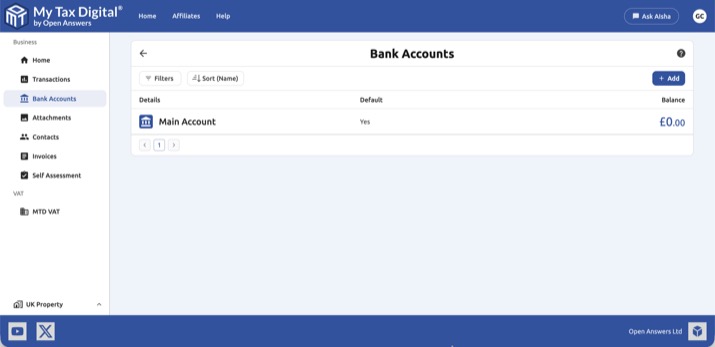
- Balance: The Current Balance shown is automatically calculated by My Tax Digital. It is derived from the net effect (income minus expenses) of all transactions recorded and linked to that account in the Transactions section. You cannot directly update the balance; it is calculated from your entries.
- Opening balance: If your bank account already had a balance when you started using My Tax Digital, the app balance will not match your actual bank statement until you record the starting difference. To set an opening balance, add a transaction in the Transactions section dated at the point you started using the app, with category Balancing Transaction and type Personal, for the difference between your actual bank balance and the app balance at that date. This will bring the two figures into line without affecting your VAT or tax figures.
- Bank accounts are per-business: Each business (or property) has its own separate bank accounts. If you have multiple businesses, the accounts and balances you see depend on which business you are currently viewing — they are not combined or shared across businesses.
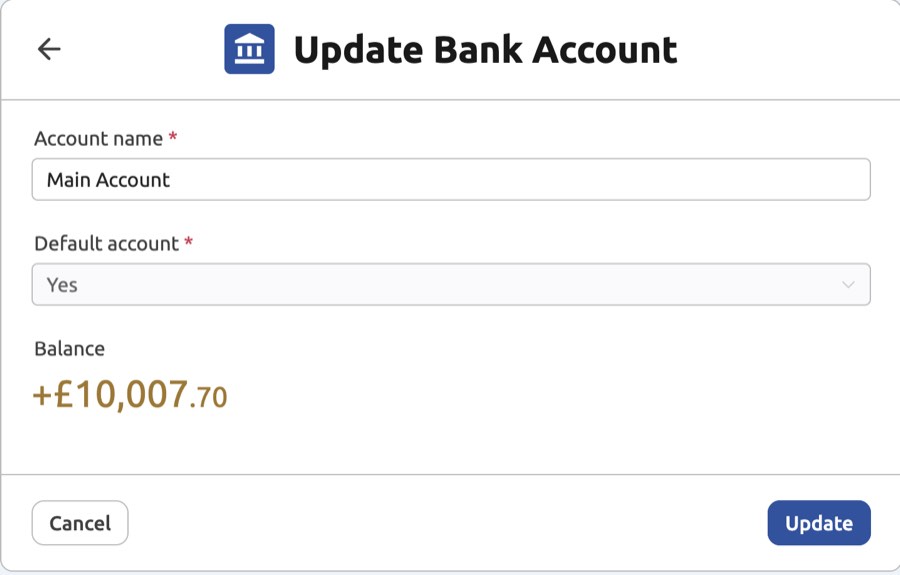
- Update Details: Click on an account in the list to open the Update bank account screen. You can rename the account. Click "Update" to save any changes.
3. Deleting a Bank Account
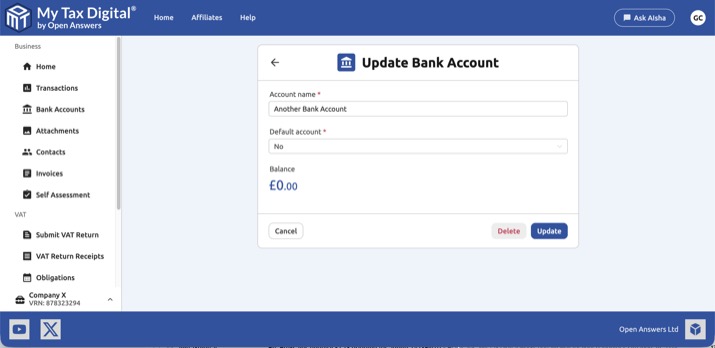
To delete a bank account, click on the account name in the list to open it, then click the Delete button at the bottom of the page.
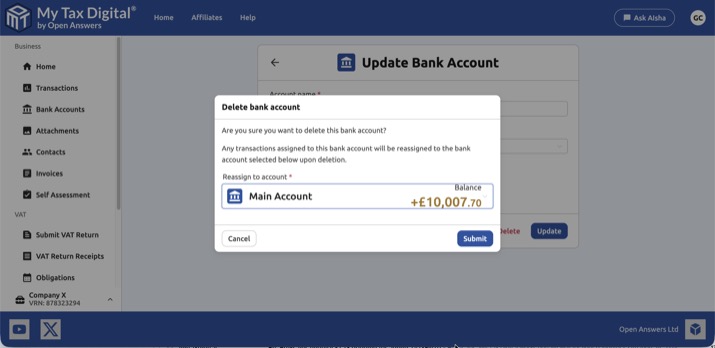
Before the account is removed, you will be asked to select another account to reassign any existing transactions to. This is required because every transaction must be linked to an account — the app will not let you delete an account that would leave transactions unassigned.
Note: The default account cannot be deleted. If you need to delete it, first open another account, tick Default account, and click Update to make that account the default — then return to delete the original.
4. Automatic Bank Feeds (Forthcoming Feature)
Please note: Direct integration with bank accounts (Open Banking) to automatically import transactions is a feature that will be coming soon.
Currently, you must manually enter transactions or import them via a CSV file. When the bank feed feature is released, you will be able to connect your online banking provider using secure technology, and your transactions will import automatically into the Transactions section.