

Charitable Giving
This guide explains how to use the My Tax Digital interface to record and update donations made to charities, including Gift Aid payments and non-cash gifts like land or shares.
1. The Charitable Givings Overview
The Charitable Givings screen provides a summary of all donations reported for the selected tax year.
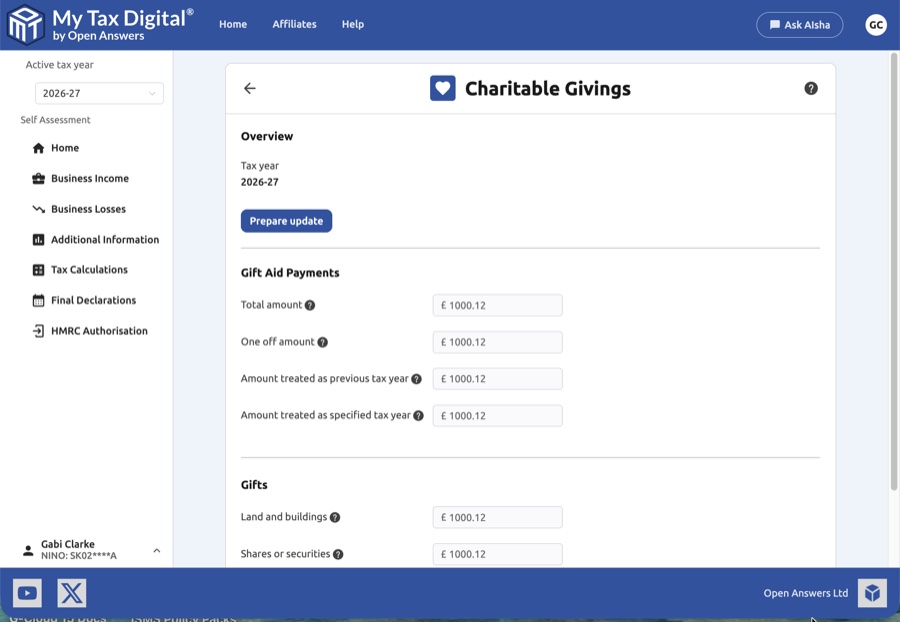
- Tax Year Context: Verify that you are viewing the correct Tax year.
- Current Records: Review the read-only totals for your Gift Aid payments and physical gifts.
- Prepare Update: Click the Prepare update button to enable the input fields and begin making changes.
- Delete: Use the Delete link at the bottom of the screen to remove all charitable giving data for this specific tax year.
2. Updating Charitable Giving Details
Once you enter the Submit Charitable Giving screen, you can provide a detailed breakdown of your donations.
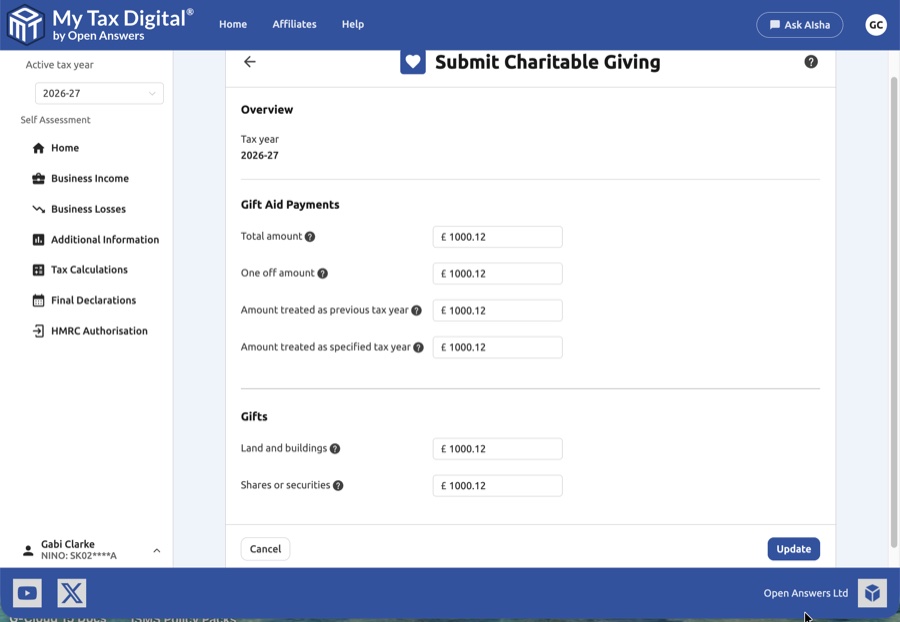
Gift Aid Payments
These are cash donations where the charity can claim back the basic rate of tax from HMRC.
| Category | Description | SA100 |
|---|---|---|
| Total amount | The total gross amount of all Gift Aid donations made in the year. | Box 9 |
| One off amount | Any single, non-recurring donations included in the total. | Box 10 |
| Amount treated as previous tax year | Donations made in the current year that you wish to "backdate" to the previous year. | Box 11 |
| Amount treated as specified tax year | Donations made in a different year that are being applied to this specific tax year. | Box 12 |
Gifts
Record the value of non-cash assets donated to a charity:
| Category | Description | SA100 |
|---|---|---|
| Land and buildings | The market value of any property or land gifted to a qualifying charity. | Box 14 |
| Shares or securities | The value of listed shares or other securities donated. | Box 15 |
3. Finalising Your Submission
Before sending your data to HMRC, ensure all figures are accurate and supported by donation receipts or certificates.
- Review: Check that the totals align with the "grossed up" values if required (the amount you gave plus the tax the charity will claim).
- Submit / Update:
- If this is your first submission for charitable giving this year, the button will be labeled Submit.
- If you are modifying existing records, the button will be labeled Update.
- Cancel: Click Cancel to return to the overview without saving your entries.