

Other Reliefs
This guide explains how to use the My Tax Digital interface to claim various tax reliefs not covered in the standard sections, such as payroll giving, maintenance payments, and post-cessation trade relief.
1. Other Reliefs Overview
The Other Reliefs screen allows you to manage a diverse range of deductible expenses and claims for a specific tax year.
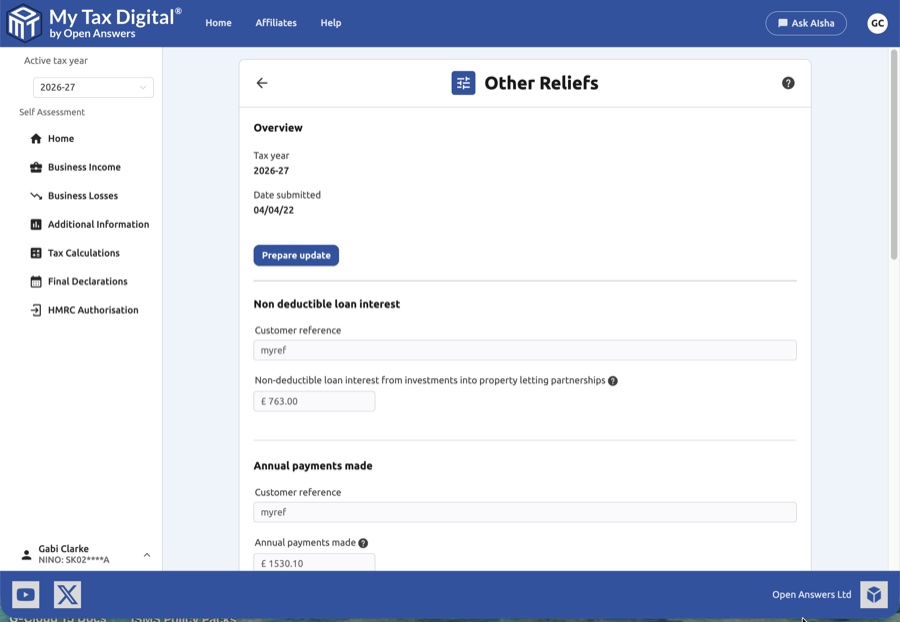
- Overview Section: Confirm the Tax year shown and see when your data was last Date submitted.
- Prepare Update: Click this button to unlock the fields and begin adding or editing your relief figures.
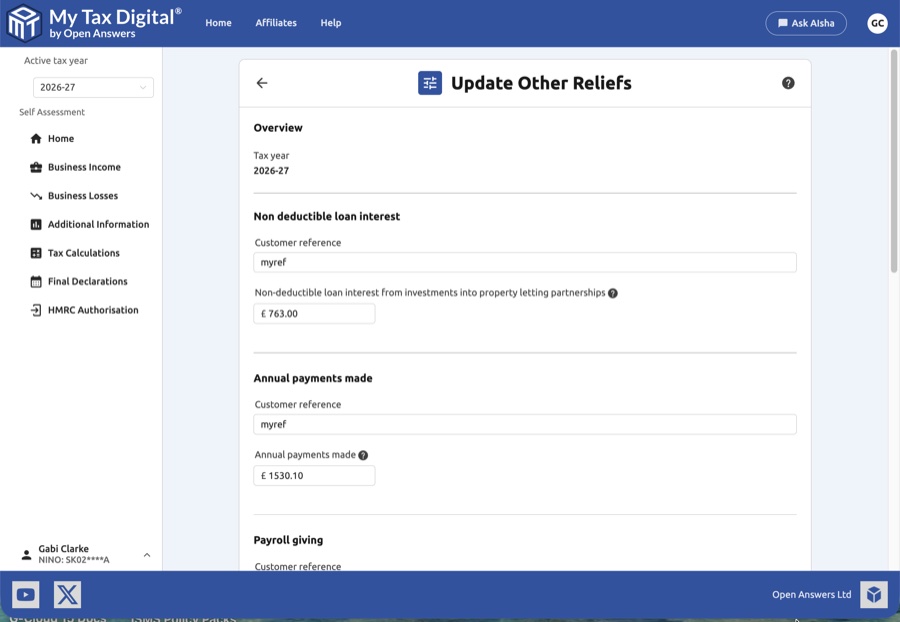
- Direct Input Categories: Several reliefs can be updated directly by providing a Customer reference and the total amount:
- Non-deductible loan interest: Specifically for interest from investments into property letting partnerships.
- Annual payments made: For regular yearly payments that qualify for relief.
- Payroll giving: For donations made directly from your salary before tax.
- Qualifying distribution redemption of shares and securities: For relief claimed on the redemption of bonus shares or securities.
2. Managing Complex Reliefs
Certain reliefs require more detailed information and are managed through dedicated pop-up modals. To add a new entry, click the + Add button next to the relevant category.
Maintenance Payments
Used to claim relief for payments made to a former spouse or civil partner.
- Details required: Ex-spouse name, their date of birth, and the total payment amount (subject to the maximum limit).
- Reported in the Reliefs section of SA100.
Post-cessation trade relief and certain other losses
Used to claim relief for losses or expenses incurred after a business has stopped trading.
- Details required: Business name, the date the business ceased, nature of the trade, income source, and the relief amount.
- Reported on SA101 (Additional Information).
Qualifying loan interest payments
Used to claim relief for interest paid on loans used for specific purposes (e.g., to buy shares in a close company).
- Details required: Lender name and the total interest payable in the year.
- Reported in the Reliefs section of SA100.
3. Adding and Editing Entries
- Submit: When adding a new detail (like a specific loan or ex-spouse) for the first time in the modal, click Submit to add the record to your list.
- Edit: Click on an existing card to reopen the modal and update the details.
- Delete: Within a modal, you can click the red Delete link to remove that specific entry entirely.
4. Finalising the Update
Once you have reviewed all entries and ensured the figures match your certificates or records:
- Update / Submit:
- If this is your first submission for other reliefs, the main button will be labelled Submit.
- If you are modifying existing data, the button will be labelled Update.
- Cancel: Use this button to exit the screen without saving any of the changes made during the session.
- Delete All: A Delete link at the very bottom of the overview page allows you to clear all "Other Reliefs" data for the selected tax year.