

Construction Industry Scheme (CIS)
This guide explains how to use the My Tax Digital interface to manage deductions made under the Construction Industry Scheme. This section is primarily for subcontractors who have had tax deducted by contractors.
1. Construction Industry Scheme Overview
The main Construction Industry Scheme screen provides a high-level summary of your CIS tax position for the selected tax year.
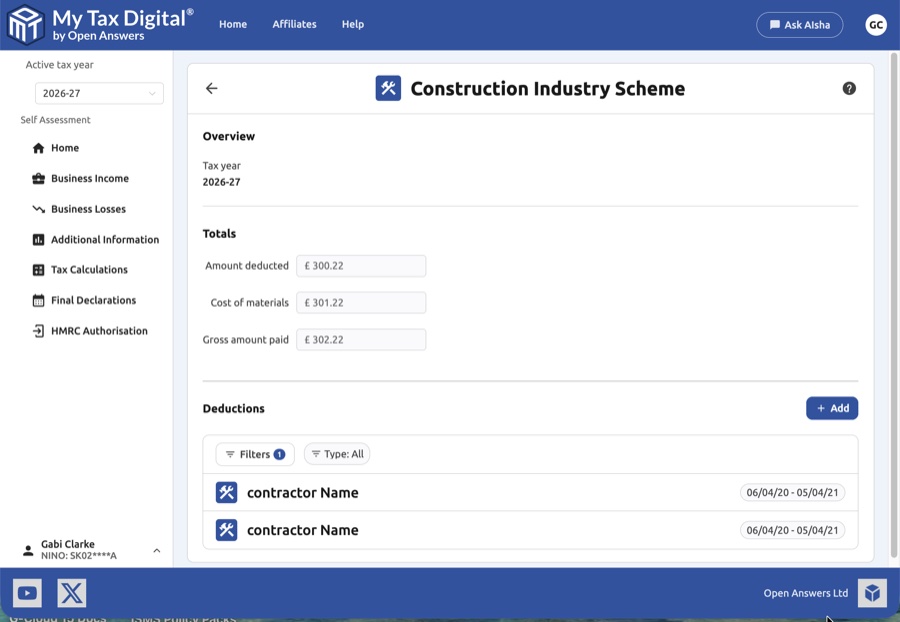
- Tax Year Context: Confirm the Tax year shown in the overview.
- Running Totals: View the cumulative totals for all contractors:
- Amount deducted: Total tax withheld from your payments. (SA102 Box 5)
- Cost of materials: Total cost of materials deducted before tax calculation.
- Gross amount paid: The total payment amount before any deductions.
- Deductions List: View all contractors who have made CIS deductions. You can use the Filters and Type buttons to sort entries.
2. Source Data: Contractor vs. Customer
The interface distinguishes between data provided directly by HMRC and data you have entered manually.
- Source: Contractor: This data comes from the contractor's own submissions to HMRC.
- Restriction: This data is read-only. You cannot edit the figures or the date ranges for these entries, as they represent the official record held by HMRC.
- Source: Customer: This data has been entered by you.
- Permissions: You have full control to edit or delete these entries to ensure your self-assessment is accurate.
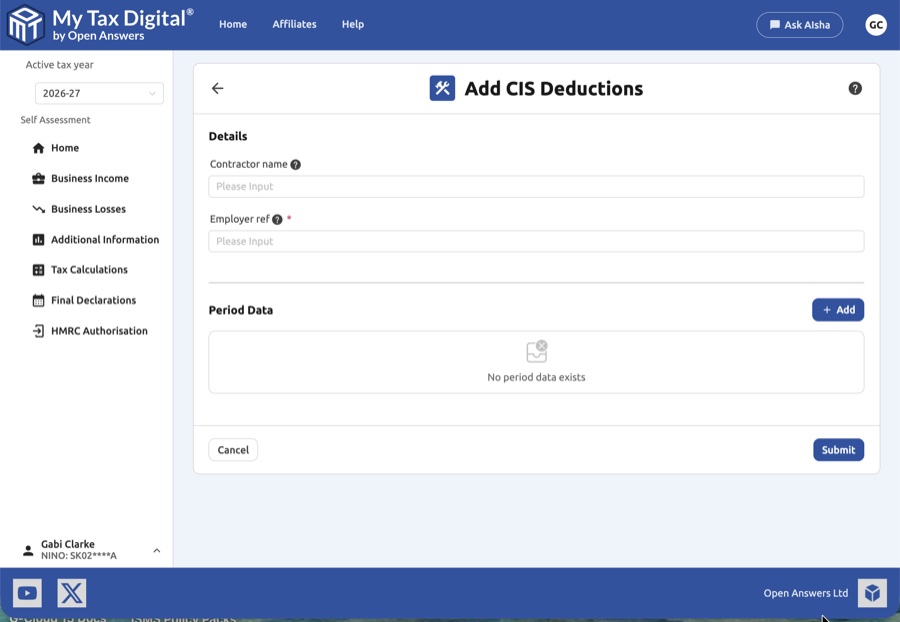
3. Managing CIS Deductions & Period Data
Selecting a contractor from the list opens their specific CIS Deductions overview.
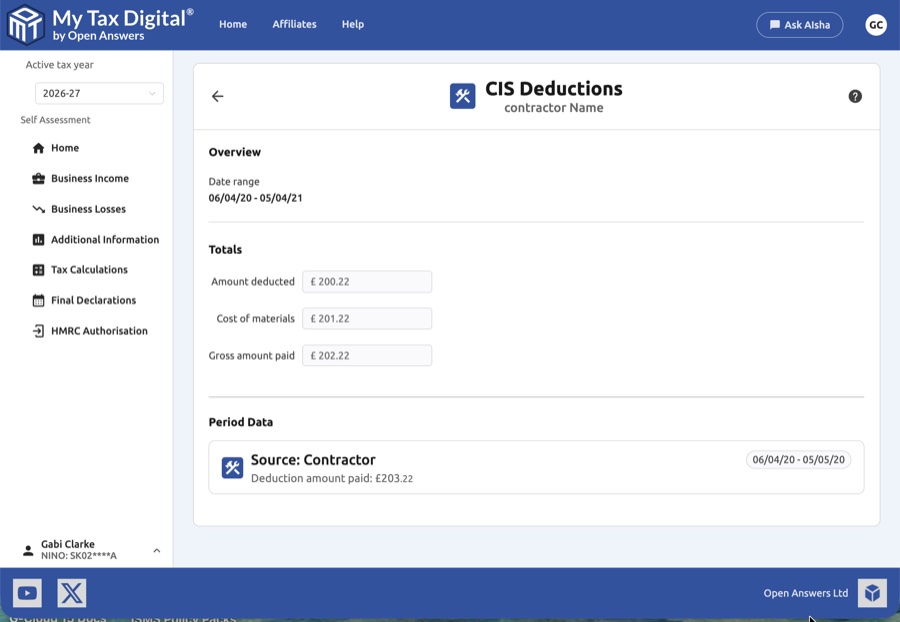
- Locked View (Contractor Source): If the source is "Contractor," the fields for Amount Deducted, Cost of Materials, and Gross Amount Paid will be locked (greyed out), and no "Prepare update" button will be available for that specific period data.
- Editable View (Customer Source): If the source is "Customer," you can manage the data:
- Prepare Update: Click this button to enable editing for your manual submissions.
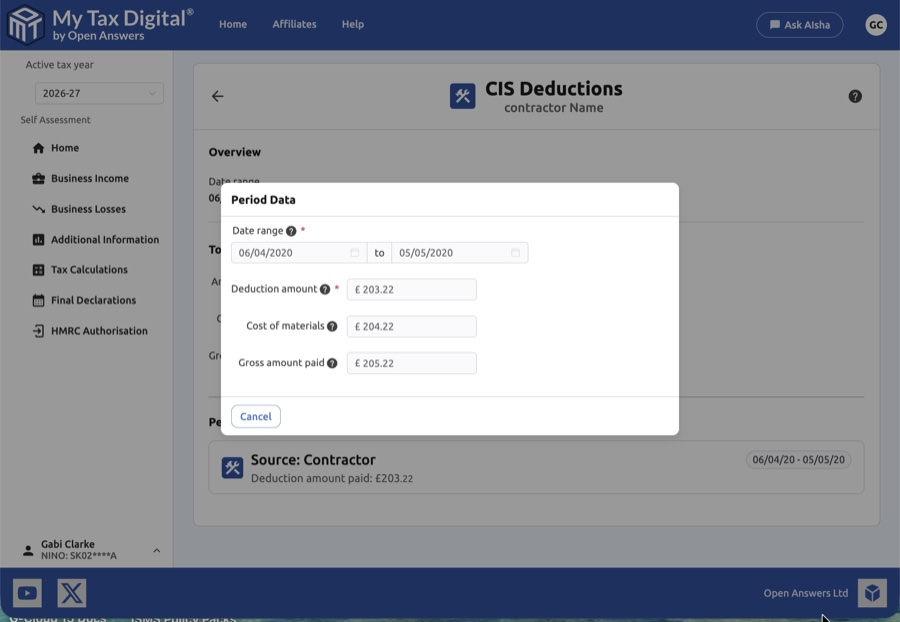
- Period Data Modal: Adding or editing a customer-sourced period opens a pop-up:
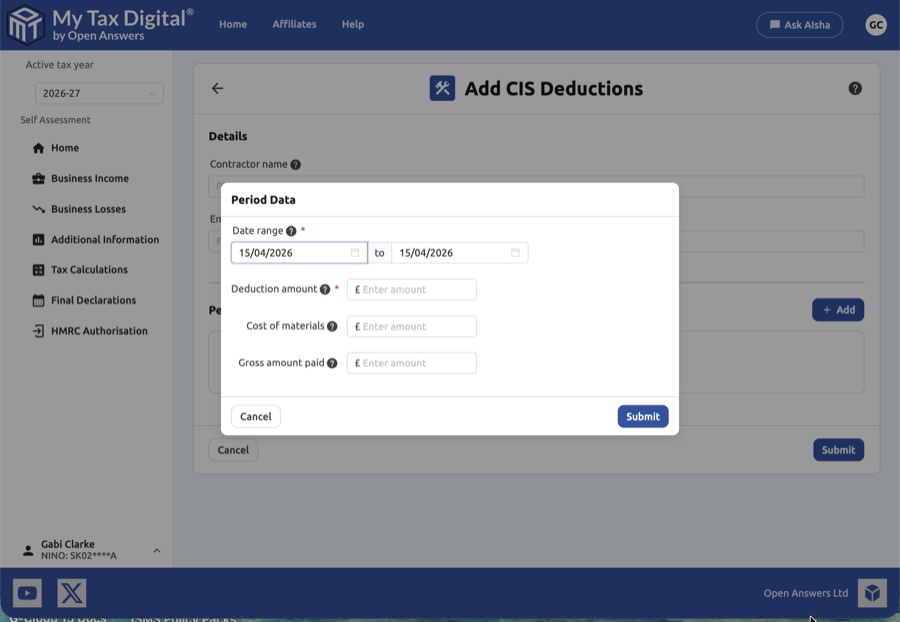
| Field | Description | SA102 |
|---|---|---|
| Date range | "From" and "To" dates for the payment period. | — |
| Deduction amount | The tax withheld for this specific period. | Box 5 |
| Cost of materials | Non-taxable material costs. | — |
| Gross amount paid | Total payment before deductions. | — |
4. Updating Period Data
To update an existing customer-sourced period, click the period entry to open the update modal.
5. Finalising Your Submission
Once you have verified your manual "Customer" entries against the read-only "Contractor" data:
- Submit: Within the Period Data modal for customer entries, click Submit to save the individual block.
- Submit / Update:
- If this is your first submission for this year, the button will be labeled Submit.
- Delete:
- Use the Delete link inside a modal to remove a customer-sourced period.
- Use the red Delete link at the bottom of a customer-sourced contractor overview to remove the entire record.
- Cancel: Click Cancel to discard edits and return to the previous screen.
6. Common questions
Should I also declare CIS income under my Self Employment income source?
Yes. Your gross CIS earnings are self-employment income and must be entered as turnover in your Self Employment income source as normal. The CIS section records only the tax deducted by your contractors — this is a credit against your tax bill, not a separate income declaration.
"Tax taken off trading income" field: Leave the "Tax taken off trading income" field (SA103F box 81) at zero — this applies in both Bridging mode (in your spreadsheet) and Accounting mode (on the Income & Expenses update screen), since there is no transaction category that feeds this field automatically. The CIS deductions your contractors have submitted to HMRC are already included in the tax calculation via the CIS section. Entering an amount here as well will cause the tax credit to be counted twice, producing an incorrect refund figure.
Where do I enter expenses for my CIS work?
There is no separate expenses section within CIS. Costs incurred carrying out your CIS work (materials, travel, equipment, etc.) should be entered as standard self-employment expenses under your Self Employment income source. The CIS section covers only the deductions withheld by your contractor.