

State Benefits
This guide explains how to use the My Tax Digital interface to manage and record taxable state benefits, such as Incapacity Benefit, State Pension, and Job Seekers Allowance.
1. The State Benefits List
The State Benefits screen provides a comprehensive list of all benefits currently associated with your tax profile.
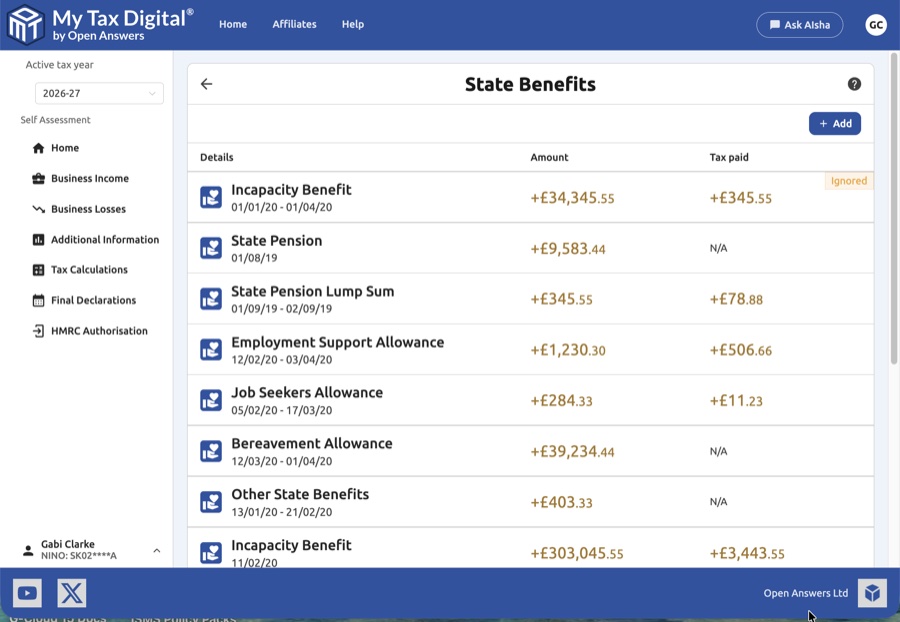
- Benefit Overview: View the type of benefit, the claim period, the gross amount, and any tax already paid.
- Status Indicators: Benefits may be marked with tags like Ignored, indicating they are not currently being used in your tax calculation.
- Add New Benefit: Click the + Add button at the top right to register a new state benefit.
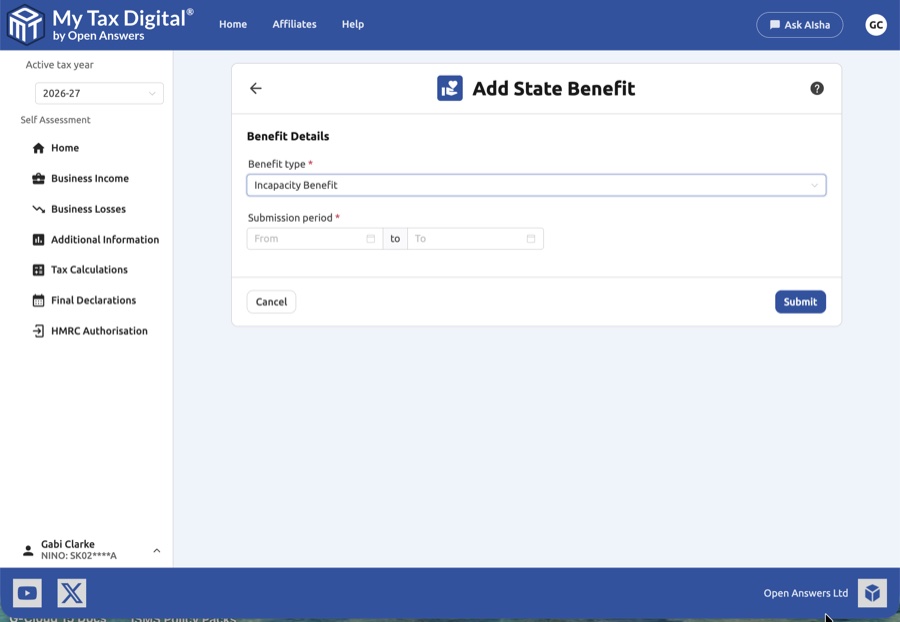
The following benefit types are available from the dropdown:
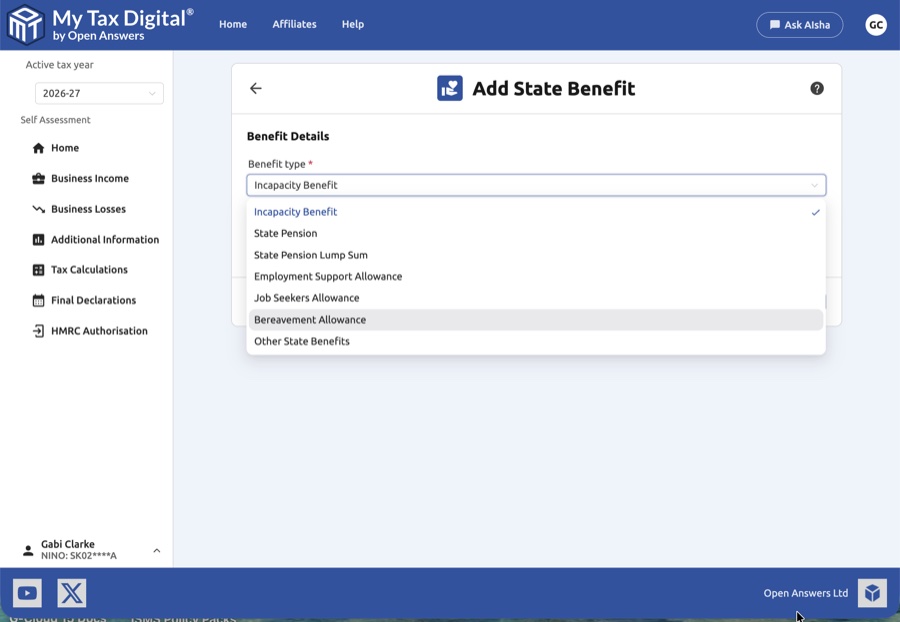
| Benefit Type | Description |
|---|---|
| Incapacity Benefit | Taxable payments if received within the first 28 weeks of illness. |
| State Pension | The weekly state pension you receive from the government. |
| State Pension Lump Sum | A deferred state pension received as a single lump sum payment. |
| Employment Support Allowance | Taxable ESA payments for those unable to work due to illness. |
| Job Seekers Allowance | Taxable JSA payments while seeking work. |
| Bereavement Allowance | Weekly payments made to widows, widowers, or surviving civil partners. |
| Other State Benefits | Any other taxable state benefit not listed above. |
- Submission Period: Enter the "From" and "To" dates for the claim.
- Submit: Click Submit to add the record to your list.
2. The Benefit Detail Screen
Selecting a specific benefit from the list opens its Overview screen, providing management options for that individual record.
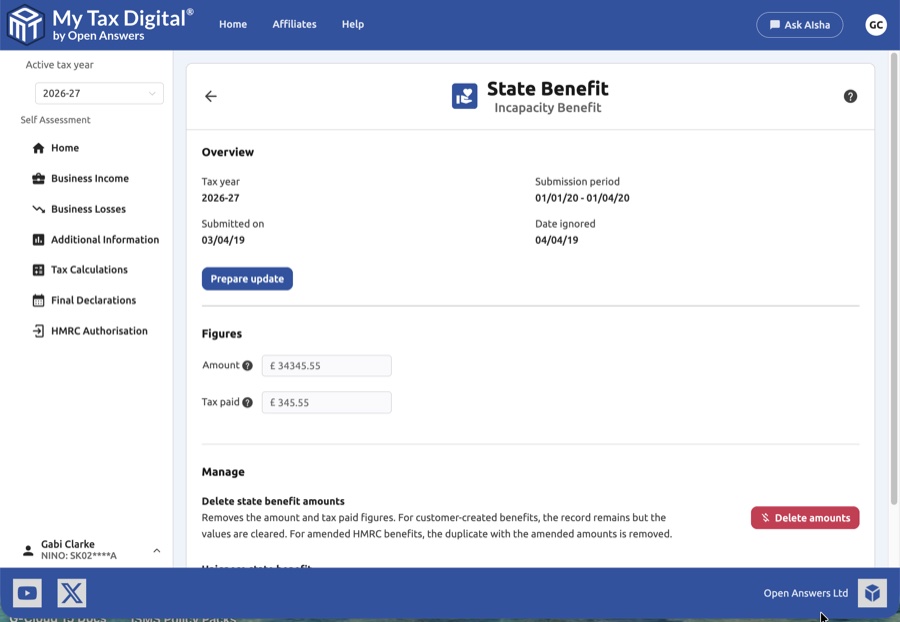
- Tax Year & Metadata: Confirm the tax year shown and the dates the benefit was originally submitted or ignored.
- Figures: View the current Amount and Tax paid associated with the benefit.
- Prepare Update: Click the Prepare update button to make changes to the existing data.
- Manage Actions:
- Delete state benefit amounts: Removes the financial figures. For customer-created benefits, the record remains but is cleared.
- Unignore state benefit: Restores a previously ignored HMRC-provided benefit so it is included in your tax calculations again.
3. Updating a State Benefit
When you choose to update a benefit, you must first select an Update type to determine which part of the record you wish to modify.
Option A: Submission Period
Select this if you need to correct the dates during which you received the benefit.
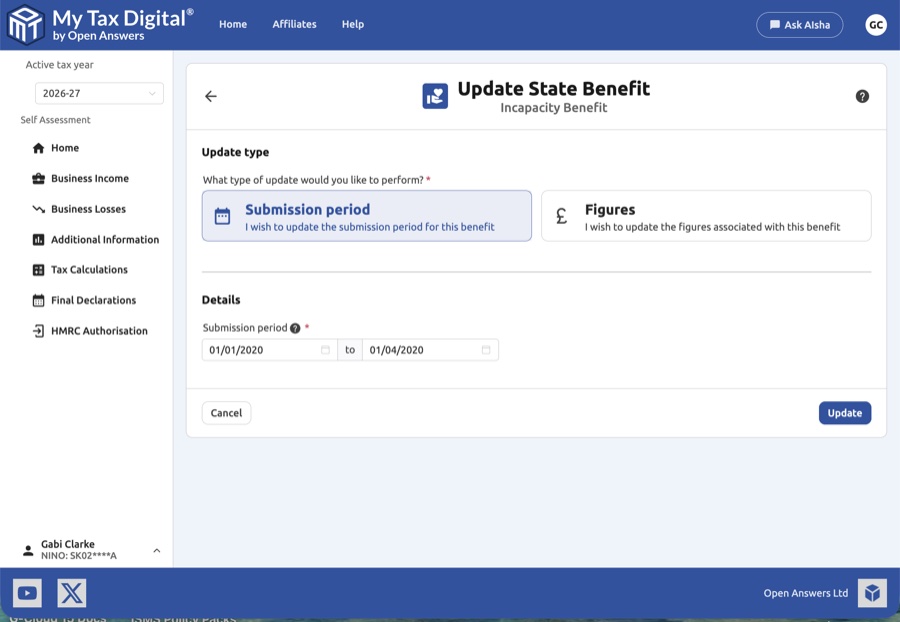
- Details: Update the "From" and "To" dates using the calendar pickers.
Option B: Figures
Select this if the financial totals need adjustment.
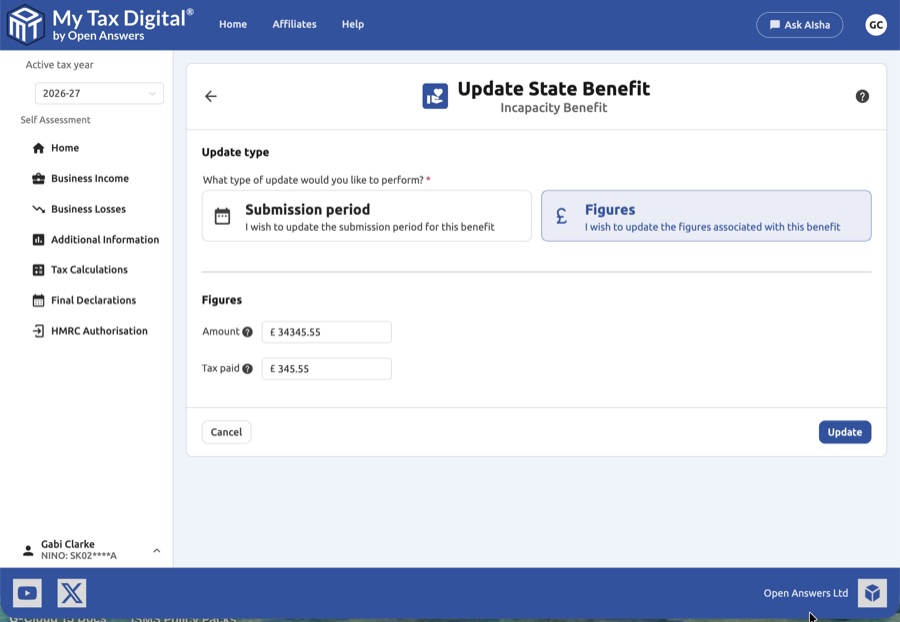
| Field | Description | SA100 |
|---|---|---|
| Amount | Enter the total gross amount of the benefit received. | State benefits box |
| Tax paid | Enter any tax that was deducted from the benefit before you received it. | — |
State benefits are declared in the income section of SA100. The specific boxes vary by benefit type — refer to your benefit payment letter or P60U for the figures to enter.
4. Finalising the Change
Once you have made your adjustments in either the Submission Period or Figures section:
- Review: Double-check the dates or figures against your official benefit statements (e.g., from the DWP).
- Update / Submit:
- If this is your first submission for state benefits this year, the main button will be labeled Submit.
- If you are modifying existing records, the button will be labeled Update.
- Cancel: Click Cancel to discard your edits and return to the previous screen.