

Employment Expenses
This guide explains how to use the My Tax Digital interface to record and update work-related expenses. These are costs you pay yourself that are necessary for your job and aren't reimbursed by your employer.
1. The Employment Expenses Overview
The Employment Expenses screen provides a breakdown of all currently recorded costs for the selected tax year.
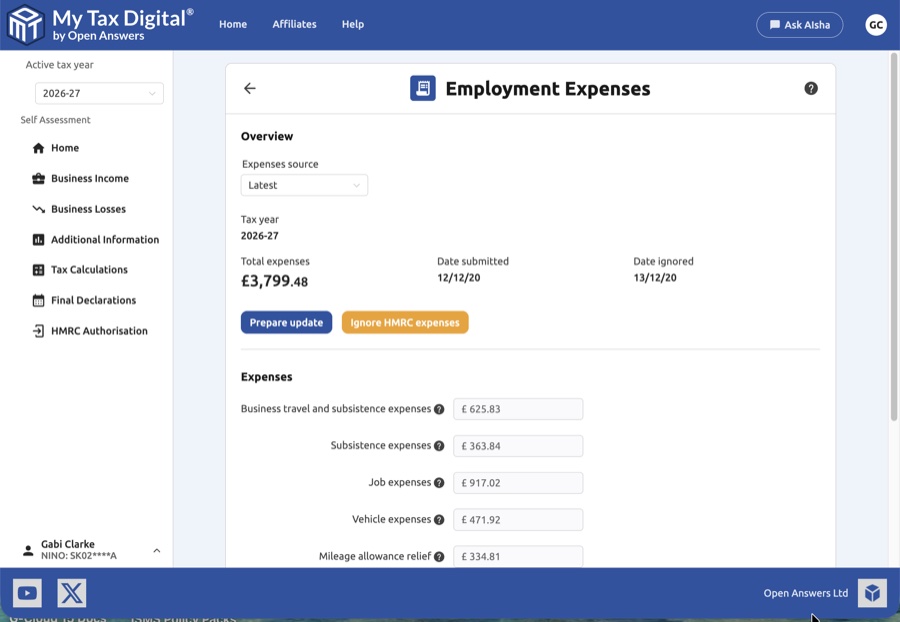
- Expenses Source: Use the dropdown to toggle between versions of your expense data:
- HMRC: Figures provided directly by HMRC.
- User: Figures you have manually entered.
- Latest: The most up-to-date combination of records.
- Overview Stats: View your Total expenses amount, the Date submitted, and the Date ignored (if applicable).
- Prepare Update: Click the Prepare update button to enable the input fields and modify your figures.
- Ignore HMRC Expenses: Use this button if you wish to exclude expense data provided directly by HMRC from your tax calculation.
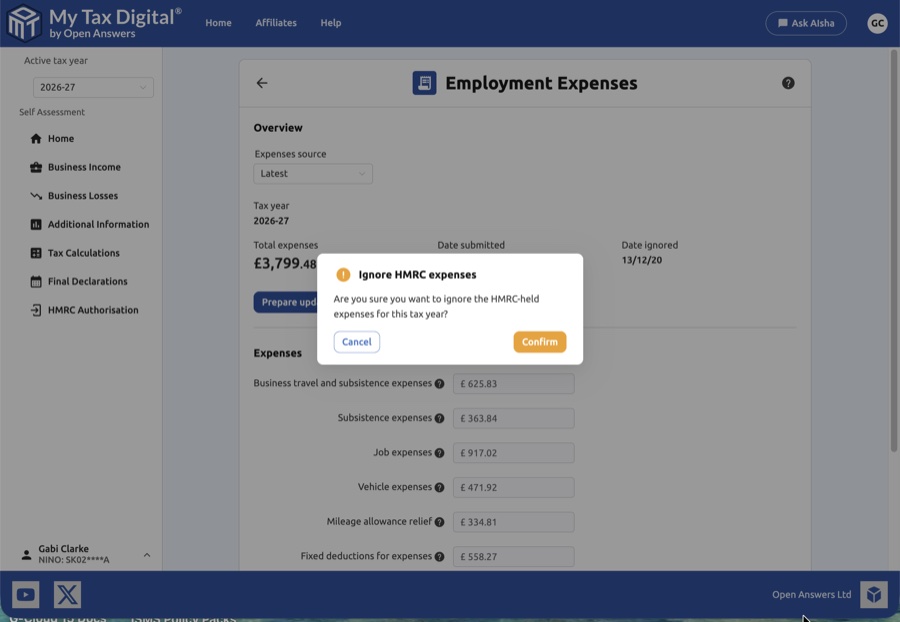
- Delete: Click the red Delete link at the bottom of the page to clear all employment expense data for the period.
2. Updating Expense Categories
Once you are in update mode, you can enter totals for various professional costs.
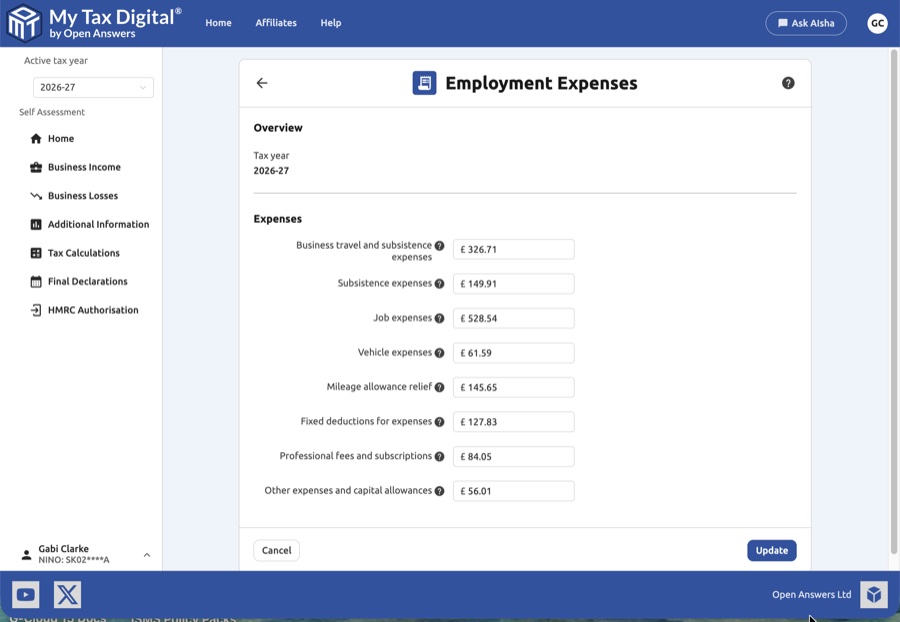
| Category | Description | SA102 |
|---|---|---|
| Business travel and subsistence | Costs for travel to temporary workplaces and associated food/drink costs. | Box 17 |
| Subsistence expenses | Specific costs for food and drink when traveling for business. | Box 17 |
| Job expenses | General costs for items or services required to perform your role. | — |
| Vehicle expenses | Costs related to using a vehicle for business (not including commuting). | Box 14 |
| Mileage allowance relief | Relief for business miles driven in your own vehicle if your employer paid less than the approved rates. | Box 12 |
| Fixed deductions for expenses | Flat-rate amounts allowed for specific trades (e.g., for cleaning uniforms). | Box 18 |
| Professional fees and subscriptions | Fees paid to approved professional organisations or societies necessary for your job. | Box 19 |
| Other expenses and capital allowances | Miscellaneous work costs and relief for large equipment purchases (e.g., tools). | Box 20 |
3. Finalising Your Submission
After ensuring your figures match your receipts or mileage logs:
- Review: Verify that the totals you've entered represent the actual out-of-pocket costs you incurred.
- Submit / Update:
- If this is your first submission for employment expenses this year, the button will be labeled Submit.
- If you are modifying existing records, the button will be labeled Update.
- Cancel: Click Cancel to return to the overview without saving your changes.