

Pensions Reliefs
This guide explains how to use the My Tax Digital interface to record and update tax relief on pension contributions, including regular payments, one-off contributions, and overseas schemes.
1. The Pensions Reliefs Overview
The Pensions Reliefs screen provides a summary of the contributions you have reported that may qualify for tax relief.
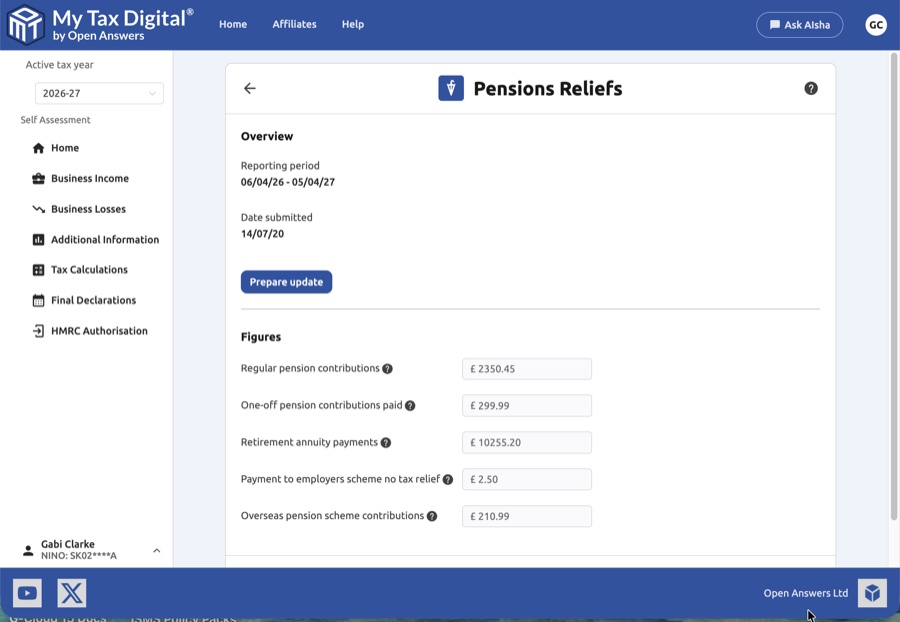
- Reporting Period: Verify the tax year (e.g., 06/04/25 - 05/04/26) to ensure the data is being applied to the correct period.
- Submission Details: View the date the information was last submitted to HMRC.
- Figures Summary: A read-only view of your current recorded contributions across five key categories.
- Prepare Update: Click the Prepare update button to enable editing and navigate to the data entry screen.
- Delete: Use the Delete link at the bottom of the page if you need to remove all pensions relief data for this period.
2. Updating Pensions Reliefs
Once you enter the Update Pensions Reliefs screen, you can input or modify the figures for your various pension payments.
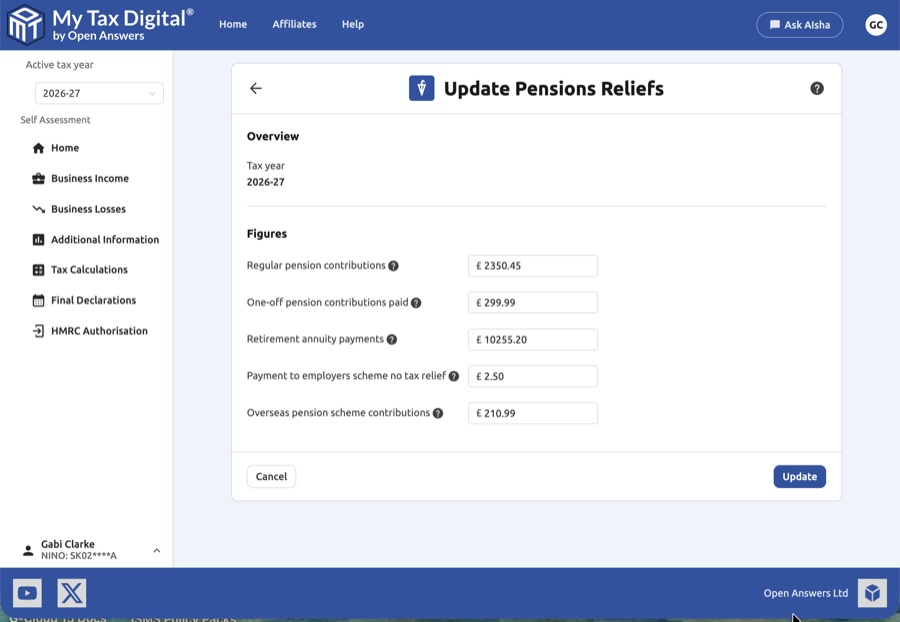
| Category | Description | SA100 |
|---|---|---|
| Regular pension contributions | Recurring payments made into a registered UK pension scheme. | Box 1 |
| One-off pension contributions paid | Single, non-recurring payments made to boost your pension pot. | Box 2 |
| Retirement annuity payments | Payments made into retirement annuity contracts (typically for older schemes). | Box 3 |
| Payment to employers scheme no tax relief | Contributions made to an employer's scheme where tax relief was not already given at source. | — |
| Overseas pension scheme contributions | Payments made to a qualifying foreign pension scheme that is eligible for UK tax relief. | Box 5 |
For overseas pension scheme contributions, additional fields may be required. Scroll down to view the overseas contribution section:
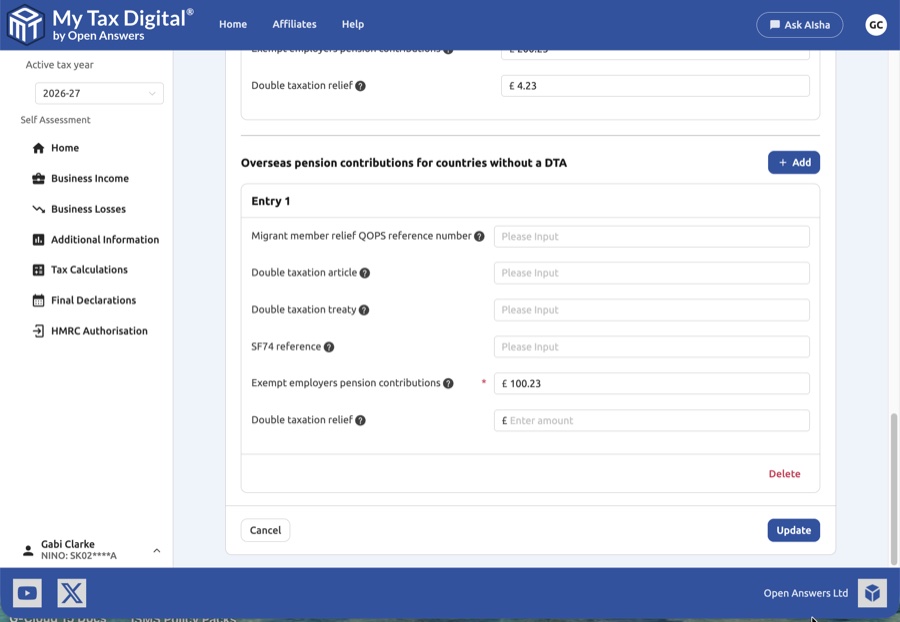
The overseas section includes fields for the migrant member relief QOPS reference, double taxation article/treaty, SF74 reference, exempt employers pension contributions, and double taxation relief.
3. Finalising Your Submission
After entering the correct totals based on your pension provider's annual statements:
- Review: Ensure the values entered represent the grossed-up amounts where applicable (refer to the tooltips for specific requirements).
- Submit / Update:
- If this is your first submission for this tax year, the button will be labeled Submit.
- If you are modifying existing data, the button will be labeled Update.
- Cancel: Click Cancel to return to the overview without saving your changes.