

High Income Child Benefit Charge
This guide explains how to use the My Tax Digital interface to report Child Benefit received if you or your partner have an individual income over the threshold.
1. The High Income Child Benefit Charge Overview
The main screen provides a summary of the Child Benefit details currently linked to your tax profile for the selected year.
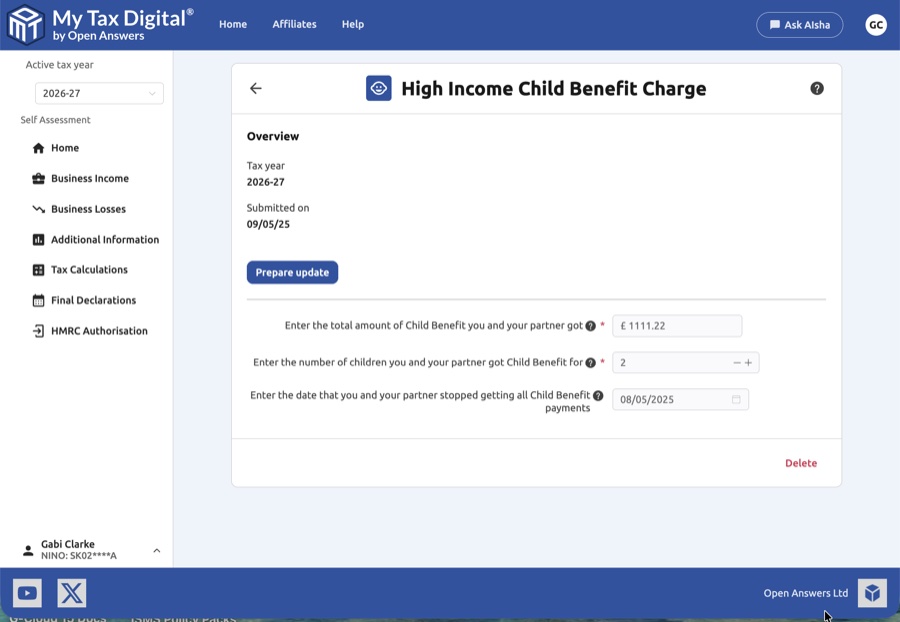
- Tax Year Context: Confirm the Tax year shown and see when your data was last Submitted on.
- Prepare Update: Click the Prepare update button to unlock the input fields and begin making changes.
- Delete: Use the red Delete link at the bottom of the page to remove the High Income Child Benefit Charge (HICBC) data for this specific tax year.
2. Submitting Your Details
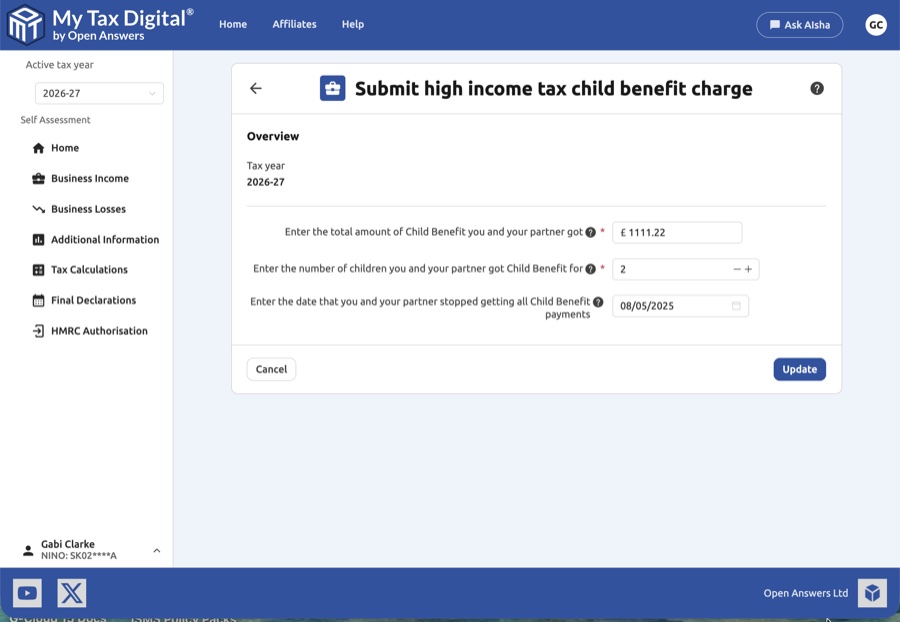
Once in the update screen, you must provide accurate information regarding the benefit received by you or your partner.
| Field | Description | SA100 |
|---|---|---|
| Total amount of Child Benefit | The total gross amount of Child Benefit payments received by you and your partner during the tax year. | HICBC section |
| Number of children | The total number of children for whom Child Benefit was claimed. | HICBC section |
| Stop date | The date that you and your partner stopped getting all Child Benefit payments (if applicable). | HICBC section |
The High Income Child Benefit Charge is calculated automatically by HMRC based on these figures and declared in the Child Benefit section of SA100.
3. Finalising Your Submission
After ensuring the figures match your records (such as bank statements or correspondence from the Child Benefit Office):
- Review: Verify that the total amount and number of children are correct to ensure your tax liability is calculated accurately.
- Submit / Update:
- If this is your first submission for this charge in the current tax year, the button will be labeled Submit.
- If you are modifying previously entered data, the button will be labeled Update.
- Cancel: Click Cancel to exit the screen without saving any of the changes made during the session.