

Other Deductions
This guide explains how to use the My Tax Digital interface to record and update miscellaneous tax deductions, specifically focusing on the Seafarers' Earnings Deduction.
1. The Other Deductions Overview
The Other Deductions screen acts as a summary for specific employment-related deductions that reduce your overall taxable income.
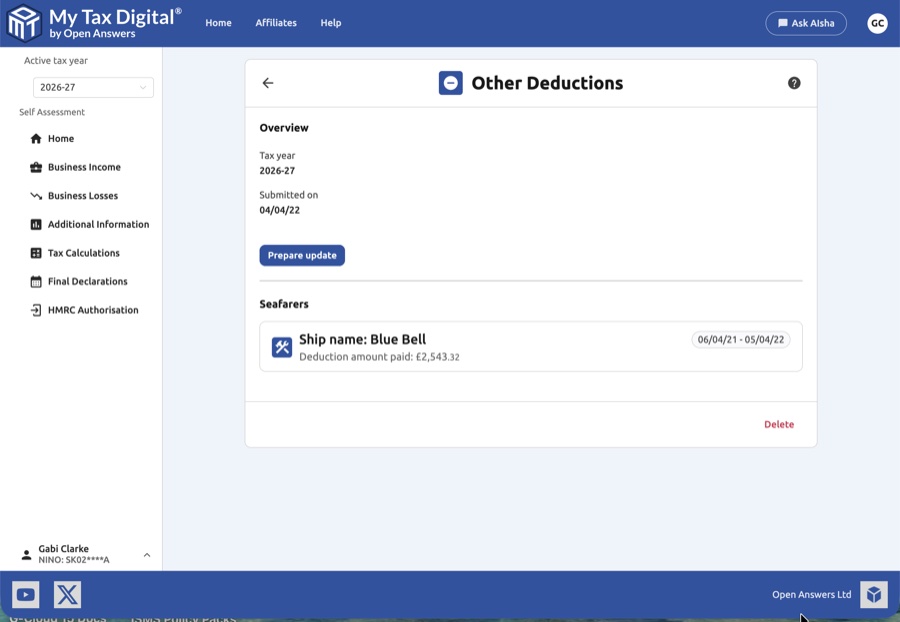
- Tax Year Status: Check the Overview section to confirm you are viewing the correct Tax year and see the last Date submitted.
- Seafarers List: View a list of all currently recorded ships and work periods. Each entry displays the ship name, the work period, and the total deduction amount.
- Prepare Update: Click the Prepare update button to enable editing mode or to add a new ship entry.
- Delete All: A Delete link at the bottom of the overview page allows you to clear all "Other Deductions" data for the selected tax year.
2. Managing Seafarers' Deductions
If you work on a ship, you may be eligible for the Seafarers' Earnings Deduction. You manage these entries via a dedicated modal.
- Add New Entry: Click the + Add button in the Seafarers section to open a fresh data entry modal.
- Edit Existing Entry: Click on an existing card to modify its details.
Required Details
Within the Seafarers modal, you must provide the following information:
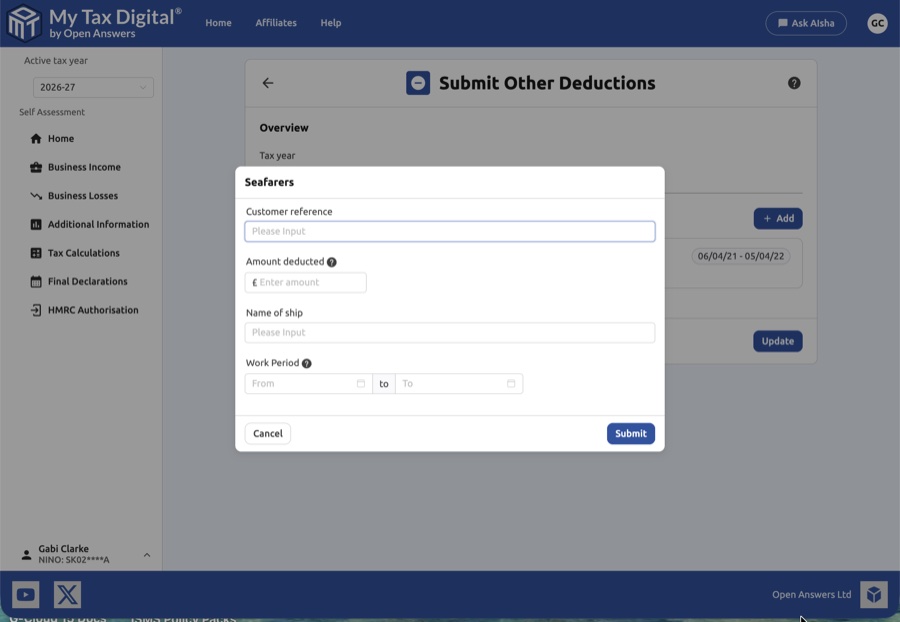
| Field | Description | SA102 |
|---|---|---|
| Customer reference | A unique identifier for your own records. | — |
| Amount deducted | The total amount of earnings you are claiming as a deduction. | SED |
| Name of ship | The name of the vessel on which you were employed during the period. | — |
| Work Period | Use the date pickers to specify the "From" and "To" dates for your time spent working at sea. | — |
The Seafarers' Earnings Deduction is reported on SA102 as a supplementary deduction (Seafarers' Earnings Deduction).
3. Submitting and Updating
- Update / Submit:
- If this is your first submission for other deductions this year, the main button will be labeled Submit.
- Delete Entry: If a specific ship entry is no longer relevant, you can use the red Delete link inside the modal to remove just that record.
- Finalise: Once you have returned to the main screen and verified all entries:
- Click Submit (if this is your first time providing deduction data this year).
- Click Update (if you are saving changes to existing data).
4. Important Considerations
- Review Your Logs: Ensure the "Work Period" dates match your discharge book or official records, as these are critical for eligibility.
- Cancel: If you decide not to save your changes, click Cancel at any time to discard your edits and return to the previous screen.