

Relief Investments
This guide explains how to use the My Tax Digital interface to record and update tax relief for various investment schemes, such as Venture Capital Trusts (VCT) and Enterprise Investment Schemes (EIS).
1. The Relief Investments Overview
The Relief Investments screen provides a summary of all tax-incentivised investments you have reported for the selected tax year.
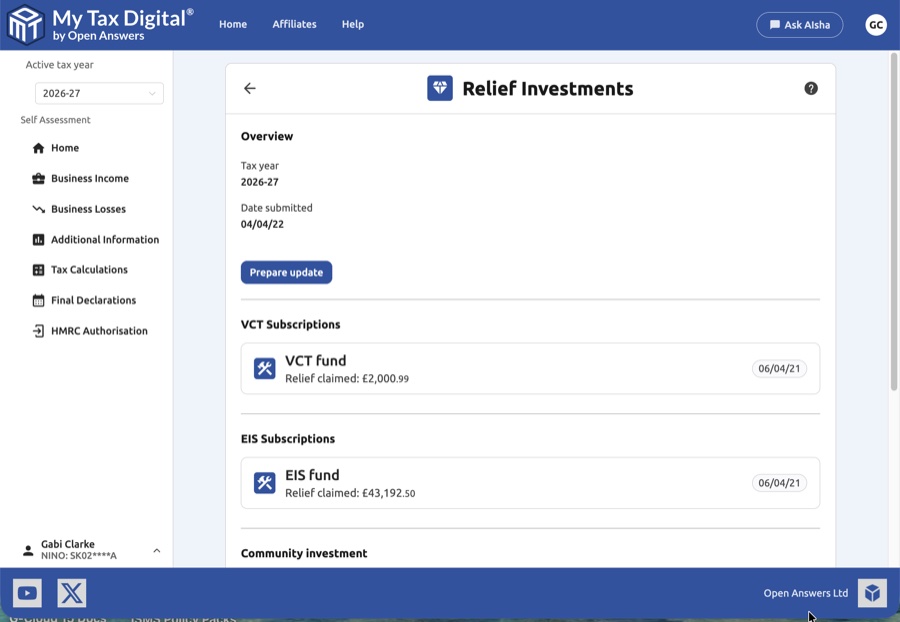
- Tax Year Context: Confirm the Tax year shown and see when your data was last Date submitted.
- Prepare Update: Click this button to unlock the fields and begin adding or editing your investment records.
- Investment List: View existing entries categorised by scheme type. Each entry shows the name of the fund/company, the date of investment, and the total relief claimed.
- Delete All: A Delete link at the bottom of the overview page allows you to clear all relief investment data for the tax year.
These relief claims are reported on SA101 (Additional Information), in the "Venture Capital Trust subscriptions", "EIS subscriptions", and related sections.
2. Managing Specific Investment Types
You can add or edit details for four main types of relief-eligible investments. To add a new entry, click the + Add button next to the relevant category.
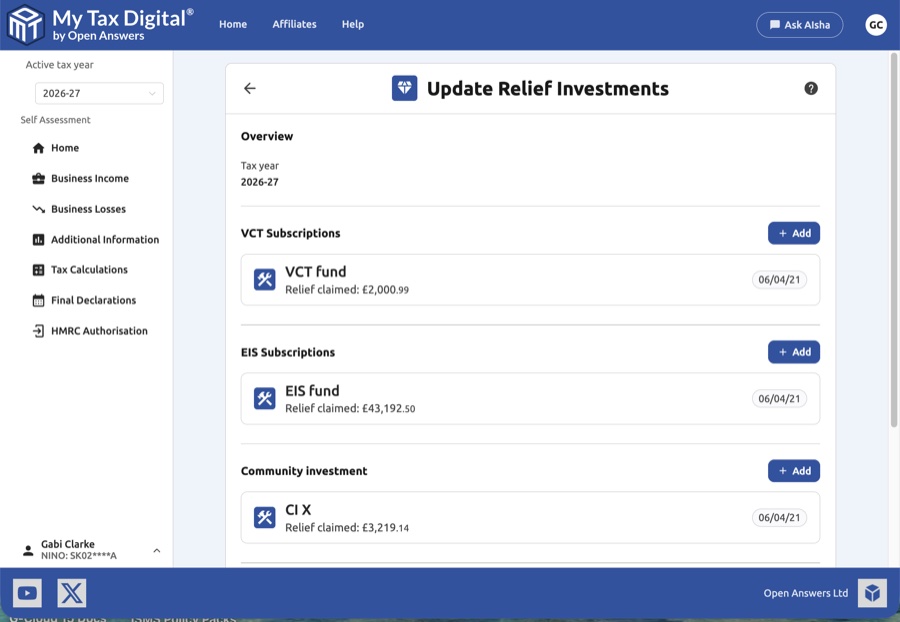
VCT Subscriptions (Venture Capital Trusts)
- Required Details: Unique investment reference, Name of the VCT fund, Date of investment, and the total subscription amount for VCT shares.
- Relief: Record the specific Relief claimed total for this subscription.
- SA101: VCT subscriptions section.
EIS Subscriptions (Enterprise Investment Scheme)
- Required Details: Unique investment reference, Name of the investment/fund, and the Date of investment.
- Knowledge Intensive: You must specify whether the investment is in a knowledge-intensive company, as this affects investment limits and timelines.
- Relief: Record the total subscription for shares and the specific Relief claimed.
- SA101: EIS subscriptions section.
Community Investment (CITR)
- Required Details: Unique investment reference, Name of the investment or fund, and the Date of investment.
- CITR Specifics: Enter the Community Investment Tax Relief amount and the final Relief claimed.
- SA101: Community Investment Tax Relief section.
Seed Enterprise Investment (SEIS)
- Required Details: Unique investment reference, Name of the company, and the Date of investment.
- Relief: Record the subscriptions for shares under SEIS and the total Relief claimed.
- SA101: SEIS subscriptions section.
3. Adding and Editing Entries
- Modals: Clicking + Add or an existing investment tile opens a dedicated pop-up modal.
- Submit: Once you have filled in the details within a modal, click Submit to add the record to your main list.
- Delete Entry: Within a modal, you can click the red Delete link to remove that specific investment record entirely.
- Cancel: Click Cancel to discard changes within a modal and return to the main list.
4. Finalising Your Submission
After reviewing your list and ensuring all "Relief claimed" totals match your official investment certificates (e.g., EIS3 certificates):
- Update / Submit:
- If this is your first submission for relief investments this year, the main button will be labeled Submit.
- If you are modifying existing records, the button will be labeled Update.
- Review: Ensure you have kept your certificates safe, as HMRC may request them to verify the claims.